Django Project: Distributing Files among Users
Thanks for showing your support for the previous blog article. In this article, I will provide you with one of the most fruitful projects that can be made through Django. So let's get started.
Whenever a thought pops into my mind, to transform it into a language mode and giving it the shape of reality, takes just a few minutes, I found myself doing it there, with the help of Django. It makes the web development process very easy and the developer can fully focus on the devlopment process and optimize performance.
Here also we will do the same as you will upload some files to a domain and everyone can access it within the organization.
But How?
We will do this using crispy forms, Pillow, pytz and Django.
We will do this using crispy forms, Pillow, pytz and Django.
You will find plenty of articles that tell you how to handle files to Django, but this article is a little more than that. This would primarily focus on How to get the benefit to an organization with this?
Before we begin…
You mentioned crispy forms, Pillow, and parts, what was that?Django-crispy-forms is a library that helps to manage Django forms, Pillow is python imaging library(known as PIL) that adds support for opening, manipulating, and saving many different image file formats and pytz brings the Olson tz database into Python
Let’s get started:
Create a new directory:
>mkdir Django-file-handling>cd Django-file-handling
We will make a virtualenv called myvenv. The general command will be in the format:
Django-file-handle> python -m venv myvenv
Start your virtual environment by running:
Django-file-handle> myvenv\Scripts\activate
Now that you have your virtualenv started, you can install Django.
Before we do that, we should make sure we have the latest version of pip, the software that we use to install Django:
(myvenv) ~Django-file-handle> python -m pip install — upgrade pip
create requirements.txt file:
pip freeze > requirements.txt
Add this into requirements.txt:
Django==2.1.3
django-crispy-forms==1.7.2
Pillow==5.3.0
pytz==2018.4
Install requirements:
install -r requirements.txt
Now, Create your Django Project:
(myvenv) C:\Users\Name\Django-file-handle> django-admin.exe startproject mysite .
And similarly, create a Django app:
(myvenv) C:\Users\Name\Django-file-handle> python manage.py startapp core
We’ll also need to add a path for static files:
mysite/settings.pySTATIC_URL = ‘/static/’
STATIC_ROOT = os.path.join(BASE_DIR, ‘static’)
When DEBUG is True and ALLOWED_HOSTS is empty, the host is validated against [‘localhost’, ‘127.0.0.1’, ‘[::1]’]. This won’t match our hostname on PythonAnywhere once we deploy our application so we will change the following setting:
mysite/settings.pyALLOWED_HOSTS = [‘127.0.0.1’, ‘.pythonanywhere.com’]
Apply the migrations:
python manage.py migrate
File upload:
Following is a minimal file upload example using FileSystemStorage. Use it just to learn about the flow of the process.
upload_book.html{% extends ‘base.html’ %}{% load crispy_forms_tags %} {% block content %} <h2>Upload book</h2> <form method=”post” enctype=”multipart/form-data”> {% csrf_token %} {{ form|crispy }} <button type=”submit” class=”btn btn-primary”>Upload book</button> </form> {% endblock %}

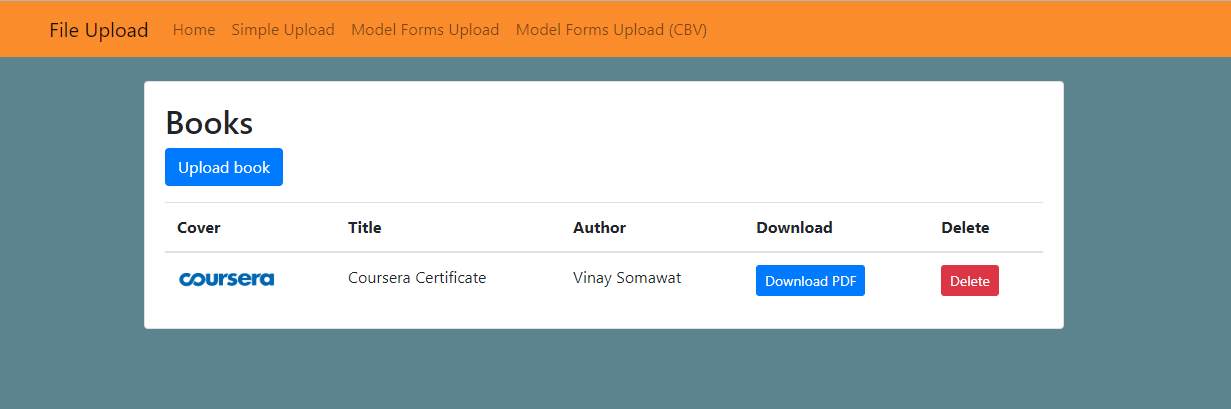
Did you notice ‘base.html’?
Yes, the base.html file is extended into upload_book file.
This is how base.html looks like:
To help keep information in the proper display format to your upload.html file, you need a CSS file
app.cssbody {
background-color: #5c848e;
}
views.pyfrom django.shortcuts import render, redirect from django.views.generic import TemplateView, ListView, CreateView from django.core.files.storage import FileSystemStorage from django.urls import reverse_lazyfrom .forms import BookForm from .models import Bookdef upload_book(request): if request.method == ‘POST’: form = BookForm(request.POST, request.FILES) if form.is_valid(): form.save() return redirect(‘book_list’) else: form = BookForm() return render(request, ‘upload_book.html’, { ‘form’: form })
File upload with Model Form
Now, this is a way more convenient way. Model forms perform validation, automatically builds the absolute path for the upload, treats filename conflicts and other common tasks.
models.pyfrom django.db import modelsclass Book(models.Model): title = models.CharField(max_length=100) author = models.CharField(max_length=100) pdf = models.FileField(upload_to=’books/pdfs/’) cover = models.ImageField(upload_to=’books/covers/’, null=True, blank=True)def __str__(self): return self.titledef delete(self, *args, **kwargs): self.pdf.delete() self.cover.delete() super().delete(*args, **kwargs)
forms.pyfrom django import forms from .models import Bookclass BookForm(forms.ModelForm): class Meta: model = Book fields = (‘title’, ‘author’, ‘pdf’, ‘cover’)
Until the end…
We are almost at the end of the article. Well, almost.
In this section, we will cover the URL part.
In this section, we will cover the URL part.
Every page on the Internet needs its own URL. This way your application knows what it should show to a user who opens that URL. In Django, we use something called URLconf (URL configuration). URLconf is a set of patterns that Django will try to match the requested URL to find the correct view.
How do URLs work in Django?
Let’s open up the mysite/urls.py file in your code editor of choice and see what it looks like:
Let’s open up the mysite/urls.py file in your code editor of choice and see what it looks like:
mysite/urls.pyfrom django.contrib import admin from django.urls import path from django.conf import settings from django.conf.urls.static import staticfrom mysite.core import viewsurlpatterns = [ path(‘’, views.Home.as_view(), name=’home’), path(‘upload/’, views.upload, name=’upload’), path(‘books/’, views.book_list, name=’book_list’), path(‘books/upload/’, views.upload_book, name=’upload_book’), path(‘books/<int:pk>/’, views.delete_book, name=’delete_book’), path(‘admin/’, admin.site.urls), ]if settings.DEBUG: urlpatterns += static(settings.MEDIA_URL, document_root=settings.MEDIA_ROOT)
As you can see, Django has already put something here for us
Lines between triple quotes (‘’’ or “””) are called docstrings — you can write them at the top of a file, class or method to describe what it does. They won’t be run by Python.
The admin URL, which you visited in the previous chapter, is already here:
path(‘admin/’, admin.site.urls),
This line means that for every URL that starts with admin/, Django will find a corresponding view. In this case, we’re including a lot of admin URLs so it isn’t all packed into this small file — it’s more readable and cleaner.
Your first Django URL!
Time to create our first URL! We want ‘http://127.0.0.1:8000/' to be the home page of our project.
Download Examples:
The code used in this post is available on Github.
First, clone the repository to your local machine:
git clone https://github.com/vinaysomawat/django-file-handle.git
Install the requirements:
install -r requirements.txt
Apply the migrations:
python manage.py migrate
Finally, run the development server:
python manage.py runserver
Did I get something wrong? Mention it in the comments. I would love to improve. Happy learning:)


Comments
Post a Comment